
A Chabiti digital business card is a personal page online - your contact info, social links, products, and portfolio - shareable with a single link or QR code. This guide walks you through creating your first card from scratch in about 5 minutes.
Step 1: Sign in and pick a template
- Open the Digital Business Card page and click Start for free.
- Sign in with your Chabiti account (registration is free).
- Pick one of the ready-made templates: From warm classic to minimal to vibrant neon. Click View demo to see a complete example before choosing.
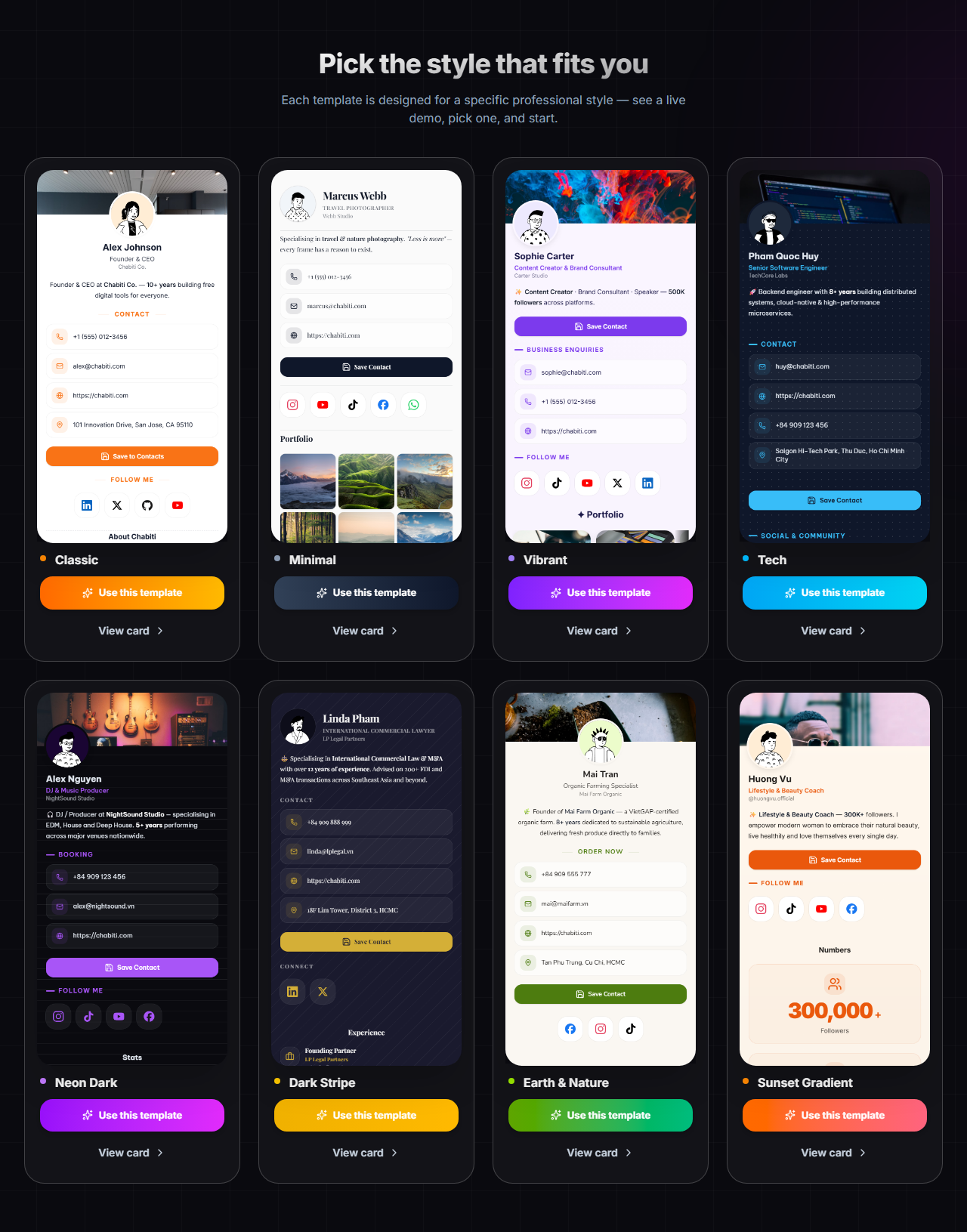
Tip: Don't overthink the template choice - every color, font, and layout can be changed later, and switching templates never deletes the content you've entered.
Step 2: Fill in the basics
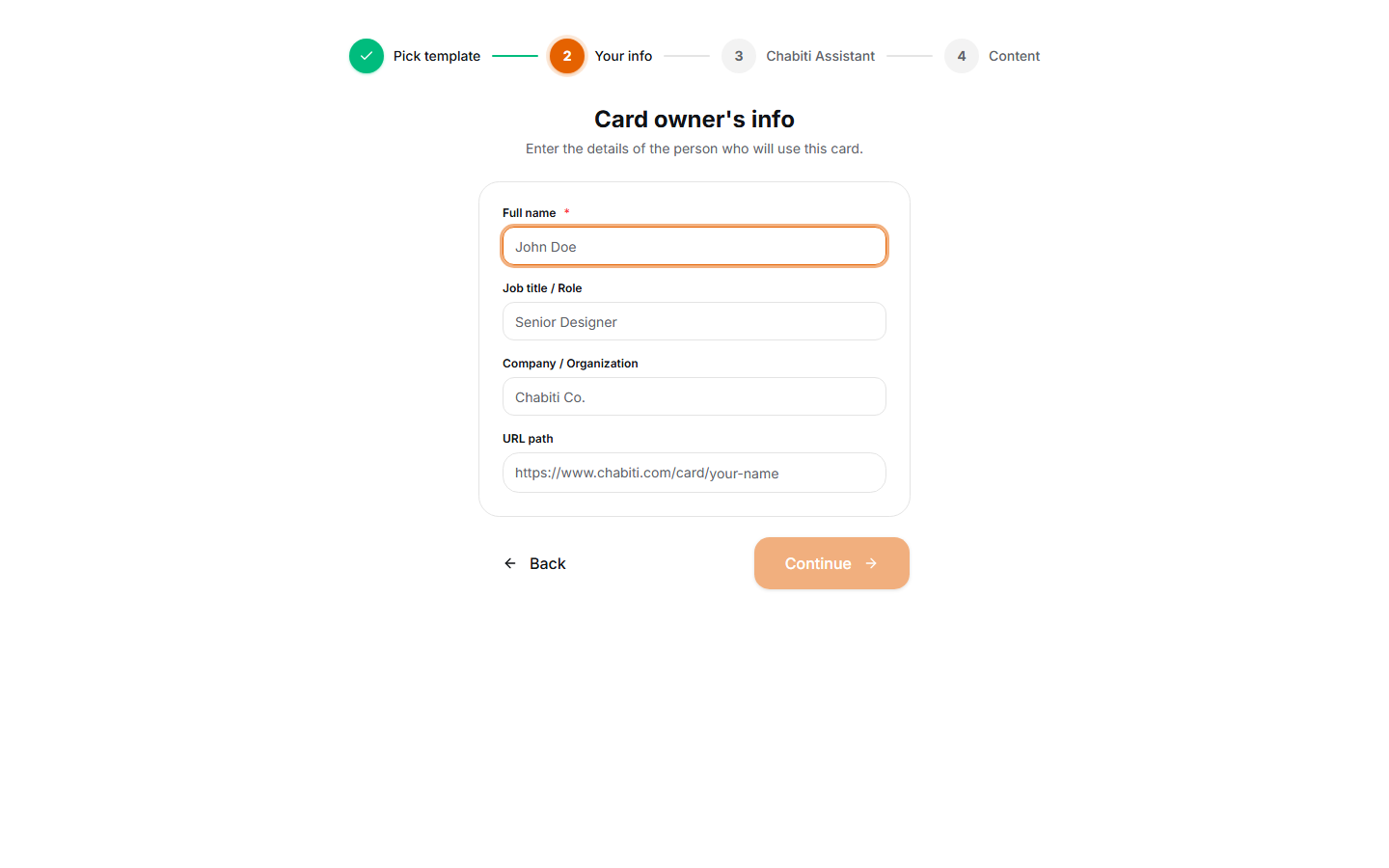
Every template starts with a Profile block at the top. Fill in:
- Profile photo: A clear, square headshot works best
- Full name and job title: E.g. "Jane Doe - Sales Director"
- Your company or brand name
Next, update the Contact block with your phone number, email, and website. This is the part visitors use most - double-check every digit.
Step 3: Add your social channels
The Social block supports 11 platforms: Facebook, Instagram, Zalo, LinkedIn, TikTok, YouTube, X (Twitter), Telegram, WhatsApp, GitHub, and a personal website. Just paste your page link - the icon appears automatically.
Only include channels you actively use. A card with 3 living channels is more convincing than 8 abandoned ones.
Step 4: Preview and publish
The preview pane always shows exactly what visitors will see on their phone. When you're happy:
- Click Save: Your card instantly gets a public link like
chabiti.com/card/your-name. - Open the link on your phone for a final check.
- Share the link, or use your card's built-in QR code.

This is what visitors see: your info with a Save contact and Scan QR action bar pinned to the bottom of the screen.
Next steps
Your first card is live! To level it up:
- Pick a template & customize your theme to match your personal brand
- Explore the 24+ content blocks - products, video, maps, payments, and more
- Let the AI assistant do the work if you're not sure what to write